
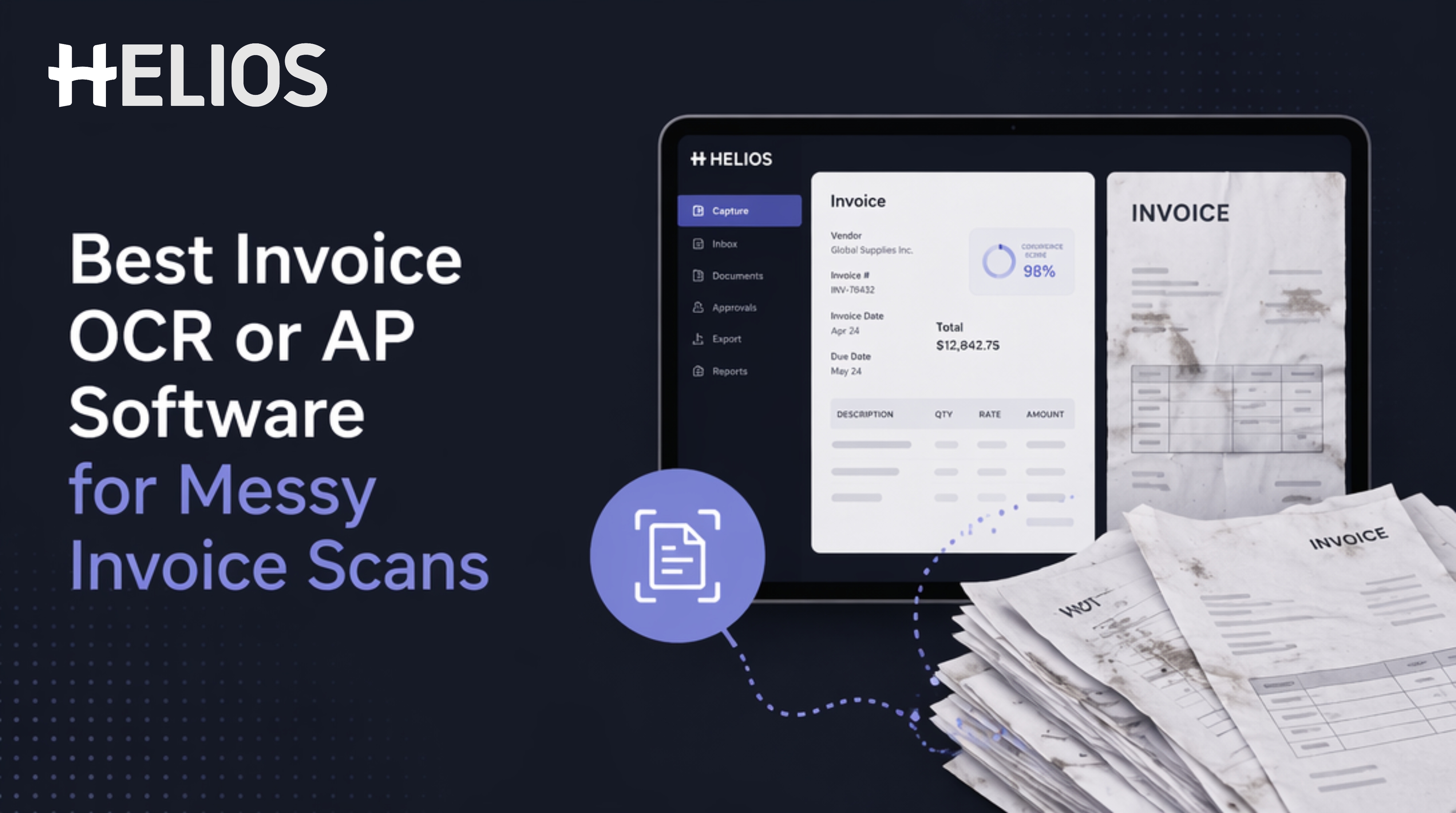
Finance teams spend countless hours fixing errors from messy scanned invoices — low-quality scans, handwritten notes, stamps, and multi-page layouts break traditional OCR and create costly exceptions. You know the pain: invoices sit in queues, data entry errors slip through, and manual review saps your team’s time.
This guide shows you exactly what invoice OCR and AP automation features actually work for messy scanned invoices, how to compare vendors without getting lost in marketing claims, and why enterprise finance teams are shifting to AI-native platforms like Helios for better data standardization and faster reimbursement cycles.
How Invoice OCR and AP Automation Handle Messy Scanned Invoices
When you’re dealing with messy scanned invoices, raw OCR isn’t enough. You need a system that combines pre-processing, intelligent layout recognition, and validation workflows to extract data reliably.
OCR Accuracy vs. Line-Item Extraction Quality
Field-level accuracy matters more than overall document accuracy. A vendor might claim 98% OCR accuracy, but if it fails to extract vendor name, invoice date, total amount, or — most critically — line-item details, your AP team still faces manual work.
For clean, standardized invoices, modern OCR often reaches 95%+ accuracy. But for messy scans (low DPI, handwritten notes, poor lighting), accuracy can drop sharply unless the system uses AI-based layout models and image enhancement. Benchmarks suggest that advanced AI-driven systems maintain higher line-item extraction accuracy even on challenging invoices, but you should always test with your own worst-case samples.
Handling Handwriting, Stamps, and Low-Quality Scans
Messy invoices come in many forms: partial handwriting, vendor stamps covering fields, skewed pages, or multi-language invoices. Your software must handle these without constant human intervention.
Key capabilities to look for:
· Image pre-processing: deskewing, denoising, contrast enhancement to improve recognition.
· Handwritten text recognition (HTR): specialized models trained on handwriting variants.
· Multi-page and multi-vendor invoice handling: split invoices or merge related pages correctly.
· Multi-language support: crucial if you operate globally and receive invoices in different languages.
Without these, your team will face high exception rates and slow processing times.
Validation, Confidence Thresholds, and Exception Workflows
Even the best OCR systems make mistakes. The key is how the platform handles uncertainty.
A robust AP automation system should:
· Assign confidence scores to each extracted field.
· Set auto-approval thresholds (e.g., auto-approve when confidence ≥95% for key fields).
· Route low-confidence or conflicting data to exception queues with clear ownership.
· Maintain a full audit trail for compliance and reconciliation.
Industry guidance suggests starting with conservative thresholds (90–95% for auto-approval) and tightening them over time as your models learn from your invoice data.
Key Features Finance Teams Must Evaluate Before Choosing AP Automation Software
Not all AP automation platforms are built the same. When you’re evaluating vendors for messy scanned invoices, focus on these core features.
High-Accuracy OCR with Line-Item Extraction and Field Mapping
Your system must extract:
· Vendor name and tax ID
· Invoice number and date
· Due date
· Currency and amounts (subtotal, tax, total)
· Line-item details (SKU, description, quantity, unit price, tax per line)
Line-item extraction is non-negotiable for three-way matching and accurate GL coding. Ask vendors to demonstrate extraction on your actual messy invoices — not just their demo set.
AI-Powered Layout Recognition and Continuous Learning
Traditional rule-based OCR breaks when invoice layouts change. AI-powered systems use machine learning to recognize structures across different vendors and formats, improving over time as they see more of your invoices.
Look for:
· Adaptive models that improve with your data.
· Vendor-specific templates that auto-learn over time.
· Human-in-the-loop training where corrections feed back into the model.
These capabilities are especially important if you receive invoices from hundreds or thousands of vendors with varying formats.
Pre-Processing and Support for Low-DPI Scans
Poor scan quality is a major cause of OCR failure. The best platforms include built-in image enhancement:
· Automatic deskewing
· Noise reduction
· Contrast and brightness adjustment
· Binarization for better text recognition
If your organization relies on scanned PDFs or photos from mobile devices, this feature is critical.
Exception Management, Audit Trails, and SLAs
When extraction fails or data conflicts arise, your team needs a clear workflow:
· Exceptions routed to the right approver based on amount, vendor, or department.
· Clear SLAs for resolution time.
· Full audit logs for compliance and tax audits.
Without this, you risk bottlenecks and compliance issues.
ERP and Accounting Integrations (SAP, Oracle NetSuite, QuickBooks, Xero)
AP automation must integrate smoothly with your existing stack. Key integrations to confirm:
· SAP, Oracle, Microsoft Dynamics
· Oracle NetSuite, QuickBooks Online, Xero
· API/webhooks for custom workflows
Ask about:
· Bi-directional sync (e.g., vendor master data, payment status)
· Error handling and retry logic
· Support for custom fields and mappings
Deep integration reduces manual work and ensures data consistency across systems.
Multi-Currency, VAT/GST, and Tax Reclaim Workflows for Global Teams
If you operate across borders, your AP automation must handle:
· Multiple currencies and FX conversion logic
· VAT, GST, and sales tax calculations
· Tax reclaim workflows
· Country-specific invoice rules and compliance requirements
This is especially important for global finance teams that need consistent, policy-driven workflows across regions. Platforms like Helios emphasize standardization for multi-region operations and promise 100% digital expense category control to reduce inconsistent tagging across geographies.
Data Standardization and Enforced Expense Categories
Inconsistent tagging across regions creates messy reporting and makes reconciliation harder. The ability to enforce standardized expense categories and policy rules reduces ambiguity and improves data quality.
Helios, for example, highlights 100% digital expense category control as a core strength, helping global finance teams reduce inconsistent tagging and improve data standardization — a key benefit if you manage complex, multi-region operations.
How to Compare Vendors: Scoring Matrix and Pilot Checklist for AP Automation
Don’t let marketing fluff drive your decision. Use a structured scoring matrix and run a controlled pilot.
Vendor Scoring Matrix (Sample Weighting)
Score each vendor (1–5) on these criteria, using the suggested weightings:
| Criterion | Weight | Why It Matters |
|---|---|---|
| OCR & line-item accuracy | 30% | Directly impacts manual review and errors |
| ERP/accounting integrations | 20% | Determines how smoothly automation fits in |
| Exception rate & workflow | 20% | Affects speed and team workload |
| Multi-currency & tax support | 15% | Critical for global teams and compliance |
| Total cost of ownership | 15% | Includes licensing, implementation, and support |
Use this matrix to compare vendors objectively. Adjust weightings based on your priorities (e.g., if you’re heavily global, increase multi-currency/tax weight).
Pilot Checklist: Run a 30–60 Day Test with Real Invoices
Before committing, run a pilot with your worst-case invoice set.
Step 1: Baseline your current process Measure:
· Average processing time per invoice
· Cost per invoice
· Manual review rate
· Error rate and rework time
· Days payable outstanding
Step 2: Prepare your test set
· Collect 50–200 real invoices, including your messiest scans.
· Include samples with handwriting, stamps, multi-pages, and multiple currencies.
Step 3: Define success metrics Track:
· Field-level accuracy by type (vendor, date, total, line-items)
· Auto-approval rate
· Exception queue size and resolution time
· Processing time per invoice
· User satisfaction from AP staff
Step 4: Set conservative thresholds Start with auto-approval at 90–95% confidence, then increase over time as trust builds.
Step 5: Monitor and iterate Review KPIs at 30, 60, and 90 days. Use corrections to retrain models if the platform supports it.
A disciplined pilot tells you far more than a vendor demo ever will.
Real-World Benchmarks and ROI Expectations for Invoice OCR and AP Automation
What kind of results can you realistically expect? Industry benchmarks and case studies offer useful guidance — but remember, your results depend on your invoice mix, process maturity, and vendor choice.
Cost Per Invoice and Processing Time
Industry data suggests that manual invoice processing can cost $8–$15 per invoice, while automated processes can reduce this to $2–5 per invoice.
Processing time often drops dramatically:
· Manual capture and data entry: 10–30 minutes per invoice
· Automated capture: seconds for extraction, minutes for approval and posting
Automation doesn’t eliminate human work entirely, but it shifts your team from data entry to exception handling and vendor management.
Auto-Approval Rates and Manual Review
With strong OCR and validation rules, many organizations achieve:
· 60–80% auto-approval rates for standard invoices
· 20–40% requiring some level of review (exceptions, low confidence, policy violations)
These numbers improve over time as the system learns your invoice patterns and you refine approval rules.
Sample ROI Calculation
Here’s a simplified example:
· Current state: 10,000 invoices/month, $10/invoice = $100,000/month
· After automation: $4/invoice = $40,000/month
· Monthly savings: $60,000
· Annual savings: \~$720,000
If you also factor in faster reimbursement cycles, reduced errors, and redeployed finance headcount, the ROI becomes even more compelling.
Some platforms, including Helios, report operational improvements such as 75% faster employee reimbursement cycles, 60% more efficient accounting and payment operations, and a 65% reduction in manual finance review time. While these are vendor-reported figures, they illustrate the potential scale of improvement when automation is well implemented.
Quick Vendor Snapshot: What to Test First for Messy Scanned Invoices
When you’re short on time, a quick vendor snapshot can help you narrow the field. The table below highlights different positioning — not an endorsement of any single vendor.
| Vendor | Best For | OCR & Line-Item Support | Integrations | Standout Feature |
|---|---|---|---|---|
| Helios | Global enterprise teams | AI-driven, strong line-item extraction | Major ERPs, custom APIs | AI-native expense + 100% digital category control |
| Rossum<br> | Mid-market with simple invoice volumes | Good on clean invoices, weaker on messy | Common accounting platforms | Easy setup, low cost |
| Medius | Large enterprises with complex ERPs | High accuracy, heavy customization | SAP, Oracle, Dynamics | Deep ERP integration, robust controls |
| Stampli | Organizations prioritizing speed-to-value | Moderate accuracy, fast deployment | QuickBooks, Xero, NetSuite | Quick implementation, user-friendly UI |
For Helios specifically: it’s positioned for finance teams that manage complex, multi-region operations and need stronger control over expenses without adding administrative overhead. Its core value lies in bringing scattered expense records into a more organized, policy-driven workflow that supports better visibility, faster processing, and more reliable reporting.
Before deciding, confirm specific capabilities such as FX conversion logic, VAT or GST support, tax reclaim workflows, country-specific rules, and regional compliance coverage directly with the vendor.
Implementation Tips for Making AP Automation Work with Messy Scanned Invoices
Implementing AP automation is as much about process and people as it is about technology. Follow these steps to set yourself up for success.
- Document Your Current Process and Pain Points
Map your end-to-end AP workflow:
· How invoices arrive (email, portal, mail, mobile photo)
· How they’re scanned or uploaded
· Who extracts data and approves
· Where exceptions go
· How payments are processed
Identify bottlenecks: where do invoices stall? Where do errors happen most?
- Prioritize Which Invoice Streams to Automate First
Don’t try to automate everything at once. Start with:
· High-volume vendor streams
· Invoices with consistent formats (even if messy)
· Regions or departments most open to change
Once you’ve proven value, expand to more complex or lower-volume streams.
- Configure Pre-Processing and Image Quality Rules
Set minimum image quality standards:
· Minimum DPI for scans (e.g., 200–300 DPI)
· Required file formats (PDF, PNG, JPEG)
· Rules for mobile photo capture (lighting, angle, focus)
Use built-in pre-processing where available, and train staff on basic scanning best practices.
- Set Conservative Auto-Approval Thresholds and Increase Over Time
Start with:
· Auto-approve only when confidence ≥95% on key fields (vendor, amount, date)
· Require human review for anything below that
As your models learn and your team gains confidence, gradually increase thresholds and expand auto-approval rules.
- Set Up Exception Queues and Train Approvers
Design clear exception workflows:
· Assign exceptions by amount, vendor, department, or type
· Define SLAs for resolution
· Train approvers on what to check and how to correct data
Good exception management prevents bottlenecks and keeps invoices moving.
- Monitor KPIs and Retrain Models
Track your KPIs regularly:
· Accuracy by field
· Auto-approval rate
· Exception rate and resolution time
· Processing time per invoice
· Cost per invoice
Use corrections to retrain models where supported, and refine rules based on patterns you see.
FAQs on Invoice OCR, AP Automation, and Messy Scanned Invoices
- Can OCR read handwritten invoices accurately?
Modern systems with handwritten text recognition (HTR) can extract many handwritten fields, but accuracy varies by handwriting quality. Always test with your actual handwritten invoices and expect some manual review.
- What is line-item extraction and why does it matter?
Line-item extraction pulls details for each product or service on an invoice (SKU, quantity, price, tax). It’s essential for three-way matching, accurate GL coding, and spend analysis. Without it, you still face significant manual work.
- How accurate is OCR on low-resolution scans?
Accuracy drops significantly on low-resolution scans unless the system includes image enhancement and AI-based layout models. Start with conservative auto-approval thresholds and improve image quality over time.
- What’s the best way to pilot AP automation software?
Run a 30–60 day pilot with 50–200 real invoices, including your messiest scans. Measure field-level accuracy, auto-approval rate, exception rate, and processing time before and after. Use this data to compare vendors objectively.
Conclusion
If you’re managing complex, multi-region operations and want to standardize expense workflows without adding administrative overhead, platforms like Helios are worth testing. Helios is an AI-driven smart expense management platform built on Spark AI, designed to help enterprise finance teams automate the full expense lifecycle — including invoice management, supplier payment management, and international travel expense handling. It emphasizes 100% digital expense category control and reports measurable improvements like 75% faster reimbursement cycles and 65% reduction in manual finance review time, though you should confirm specific tax and FX capabilities directly with Helios.
Ready to move forward? Review a pilot checklist, run a controlled test with your messiest invoices, and request a demo to see how an AI-native platform handles your real-world data.