
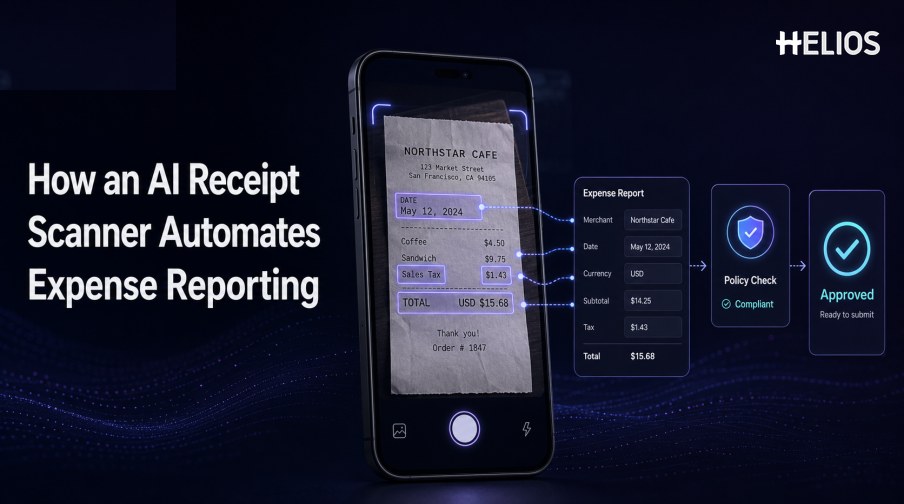
An AI receipt scanner turns a photograph or uploaded receipt into structured expense data. Instead of asking an employee to type the merchant, date, currency, amount, and tax into a form, the tool recognizes the document, proposes field values, and creates a draft expense record for confirmation.
The useful automation continues beyond scanning. A controlled workflow validates required fields, asks for missing business context, checks policy, routes the expense for approval, and preserves the original receipt with every correction and decision.
This guide explains the complete process and shows how Helios AI-Powered Receipt Capture and Spark AI can support mobile submission and expense review.
What Is an AI Receipt Scanner?
An AI receipt scanner combines image capture, OCR, layout analysis, field extraction, normalization, and validation. It may operate inside a mobile expense app, a web upload interface, an email or batch channel, or an API-enabled document workflow.
The result should be treated as a proposed expense record, not unquestioned truth. Employees and finance teams need a way to compare extracted values with the source and resolve uncertain or inconsistent information.
Step 1: Capture a Usable Receipt Image
Capture quality determines how much correction is needed later.
- Guide the camera. Show borders, focus, glare, orientation, distance, and lighting feedback before the user submits.
- Preserve the original. Keep the source image, capture time, channel, pages, and relevant metadata.
- Correct the image. Crop, rotate, deskew, improve contrast, reduce background noise, and detect missing edges.
- Support multiple pages. Handle long receipts, supporting pages, and document attachments without losing order.
- Detect unreadable evidence. Ask for a new image when blur, shadow, damage, or cropping prevents reliable recognition.
Step 2: Extract and Prefill Expense Fields
OCR recognizes text; document intelligence maps it into expense fields.
- Merchant. Capture the merchant name, location, tax identifier, or other required reference.
- Date and time. Identify transaction date and time while normalizing local formats.
- Currency and amounts. Extract currency, subtotal, tax, tip, discount, and total where available.
- Payment information. Recognize card suffix, payment type, or transaction reference when permitted and required.
- Line items. Capture descriptions, quantities, unit prices, tax, and row amounts when the process needs detailed data.
- Suggested category. Use merchant and item context to propose an expense category without removing user accountability.
Step 3: Validate the Draft Expense
Validation determines whether the prefilled data is ready to submit.
- Required fields. Confirm merchant, date, currency, amount, category, entity, business purpose, and evidence requirements.
- Arithmetic. Check whether subtotal, tax, tip, discount, and total reconcile within approved tolerances.
- Duplicate screening. Compare receipt images and key fields with earlier claims or transactions.
- Card or transaction matching. Link the receipt to an approved corporate-card transaction or other reference where supported.
- Policy rules. Check category, amount, time, location, participant, limit, and supporting-document requirements.
- Confidence and correction. Route missing, unreadable, low-confidence, conflicting, or unusual values to the appropriate person.
Step 4: Connect Submission with Review and Approval
A scanned receipt becomes useful when it moves through an accountable process.
- Employee confirmation. The submitter confirms extracted fields and adds business purpose, participants, project, or cost center.
- Automated checks. The system applies required-field, duplicate, transaction, policy, and arithmetic rules.
- Conditional routing. Amount, role, department, entity, category, cost center, and exception type determine the approval path.
- Reviewer context. Show the receipt, extracted values, policy result, related transaction, corrections, comments, and history together.
- Accounting preparation. Approved expense data can be mapped to accounts, tax codes, cost centers, and other financial dimensions.
- Audit trail. Retain the source, edits, checks, approvals, export status, and accounting outcome.
A Simple AI Receipt Scanner Workflow
The employee experience can remain simple while finance controls stay visible.
- Photograph or upload the receipt. Capture the complete document through a governed channel.
- Review prefilled values. Confirm merchant, date, currency, tax, total, category, and other required fields.
- Add business context. Provide purpose, participants, trip, project, cost center, or related transaction.
- Run validation and policy checks. Identify missing evidence, duplicates, mismatches, limits, and exceptions.
- Route for approval. Send the expense to the correct manager or finance reviewer.
- Prepare accounting and reporting. Use approved data for mappings, journal entries, reimbursement status, and analysis.
How Helios Supports AI Receipt Scanning
Helios publicly presents mobile-first expense submission and AI-Powered Receipt Capture, stating that users can photograph or upload a document and that OCR auto-fills details. Spark AI adds conversational claim and approval support. Together, these capabilities provide five practical connections:
- Capture on mobile. Employees can submit receipt evidence from a phone.
- Prefill the expense. OCR reduces manual entry by filling document information.
- Apply policy controls. Company spending rules can be checked automatically.
- Assist submission and review. Claim Copilot and Approval Copilot support conversational expense tasks.
- Connect approved data. Accounting-entry generation and reporting support finance outcomes.
Helios also presents itself as an enterprise-grade provider with global experience and information-security credentials. Organizations should validate receipt formats, image-quality handling, languages, field and line-item coverage, confidence, duplicate detection, card matching, tax logic, mobile platforms, offline behavior, accounting mappings, and regional requirements.
FAQs About AI Receipt Scanners
Is an AI receipt scanner the same as OCR?
OCR recognizes text. An AI receipt scanner also maps fields, normalizes values, validates data, handles exceptions, and connects the draft with expense workflows.
Can employees submit without checking the scan?
The safest process requires confirmation when fields are uncertain, missing, conflicting, unusual, or financially material.
Which receipt fields can be captured?
Common fields include merchant, date, time, currency, subtotal, tax, tip, discount, total, payment method, and sometimes line items.
How does scanning reduce finance work?
It reduces rekeying, standardizes data, runs routine checks, and directs reviewers to exceptions rather than every field.
What does Helios publicly offer?
Helios describes mobile submission and OCR-based receipt or invoice capture that auto-fills details within its expense-management workflow.
Organizations can test Helios AI-Powered Receipt Capture with real mobile images, difficult receipts, required fields, duplicate cases, policy rules, approval routes, accounting mappings, and measured correction effort.