
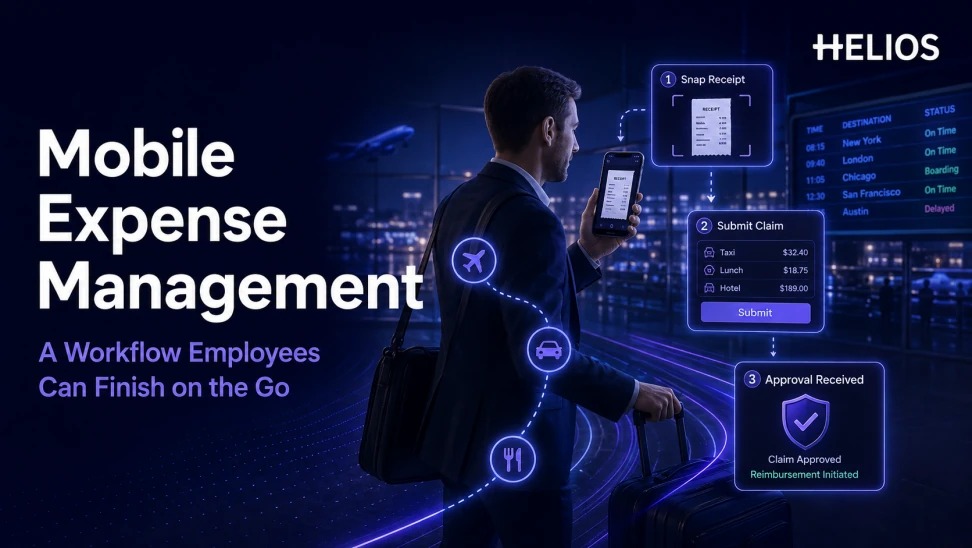
What is mobile expense management?
Mobile expense management lets employees and approvers complete essential expense tasks from a phone: capture a receipt, verify extracted details, add a business purpose, choose a project or cost center, submit a claim, answer a question, approve an item, and check status.
A mobile workflow is not a desktop form squeezed onto a small screen. The employee may be in a taxi between meetings, approving a colleague's claim between calls, or finishing a report on a slow hotel connection at midnight. The design must minimize typing, remember context, prevent duplicate work, and make the next required action obvious.
This guide is about how to design each screen of that workflow, whoever the user is. It is not a vendor shortlist. Companies whose main users are deskless or field-based workers can start with the selection criteria in Best Expense Systems for Deskless and Field-Based Employees, then use the design requirements below to test the apps on that shortlist.
For the wider journey, see automated travel expense reporting.
The goal is a complete expense record at the moment the employee still remembers the purchase. Finance receives better documentation, managers receive decisions they can understand, and employees spend less time reconstructing a trip after returning home.
Mobile expense workflow at a glance
| Screen | What the employee does | Design requirement | Control outcome |
|---|---|---|---|
| Camera | Photograph or upload receipt | Fast camera, crop, quality check, offline tolerance | Original evidence retained |
| Review | Confirm extracted fields | Large fields, confidence cues, simple correction | Accurate amount, date, merchant, currency |
| Context | Add purpose and coding | Suggestions, recent projects, voice or short text | Business context recorded |
| Submit | Resolve policy requirements | Inline prompts and clear exception route | Fewer incomplete claims |
| Approve and status | Review or check status | Mobile approval summary and notifications | Faster decisions and visibility |
Receipt capture is explained further in OCR receipt recognition for automated expense submission.
A mobile expense journey should move from receipt capture to verified data, business purpose, submission, approval, and visible status.
Capture the receipt in seconds
Open directly to the camera, detect edges, correct orientation, and warn when the image is unreadable. Preserve the original file and allow electronic receipts from email or other supported channels.
If connectivity is unreliable, save a secure draft and show whether upload has completed. Avoid making the employee repeat the capture after a network interruption.
Travel teams can use the Helios guide to a travel expense management system.
Autofill, then ask the employee to verify
OCR can extract merchant, date, amount, currency, tax, and invoice details. Show the result in a short review screen and focus attention on low-confidence fields.
Do not hide the source image. The employee should be able to compare the receipt and extracted data, correct errors, and understand which fields are required.
Collect business context with minimal typing
Use recent projects, calendar context, travel itinerary, card transaction, location, expense category, and role to suggest values where appropriate. Keep suggestions editable and avoid inferring sensitive context without a clear business reason.
A good business-purpose prompt asks what the expense supported. For meals, the workflow may also require attendees. For project costs, it may require a project or customer.
Handle policy and exceptions in the flow
Show the rule when an expense exceeds a limit or needs evidence. Tell the employee what can be corrected and provide an exception route when the business need is legitimate.
A warning without an action creates support tickets. A useful message identifies the issue, required document or approval, and the result of continuing.
International rollout considerations appear in global expense management.
Make mobile approval safe and fast
Give approvers the amount, employee, category, business purpose, receipt, policy result, budget or project, and prior approval context. High-risk cases may need a fuller review rather than one-tap approval.
Support delegation, reminders, and send-back with a specific request. Preserve the approver, time, comments, and final decision.
Show status through reimbursement
Employees should see draft, submitted, returned, approved, scheduled, paid, and failed states where applicable. Notifications should link to the exact task and avoid exposing sensitive information on a locked screen.
Measure completion time, abandoned drafts, missing receipts, corrections, approval time, and reimbursement cycle to improve the mobile journey.
Design for real mobile conditions
Test the workflow with one hand, on a small screen, in bright light, with a slow network, and after the app has been interrupted. Check camera permission, photo size, upload retry, session timeout, keyboard behavior, accessibility, and safe handling of sensitive information. Employees should always know whether a receipt is saved and whether a claim was submitted.
Keep the primary path short but make exceptions discoverable. Progressive disclosure can hide accounting detail until it is needed. Reuse reliable context such as the matched card transaction or travel itinerary, then let the employee correct it. Avoid forcing users to open a desktop browser to complete a routine claim.
Measure whether employees can finish
Track capture completion, draft abandonment, resubmission, OCR corrections, missing fields, policy warnings, exception requests, approval time, and reimbursement status inquiries. Segment by device, operating system, country, role, and workflow type to locate friction that an overall completion rate can hide.
Combine event data with short user interviews. Observe employees completing a receipt immediately after purchase and reconstructing one later. Use the findings to remove unnecessary taps, improve prompts, and decide which actions belong on mobile and which require a fuller finance review.
How Helios supports mobile expense management
Helios connects mobile receipt capture and reimbursement with policy, approval, accounting, reporting, and Spark AI copilots. Mobile convenience is only worth having when it produces a complete, controlled finance record rather than a faster incomplete claim, and the capabilities below are built around that standard.
For AI-assisted journeys, read about AI travel and expense management.
- Mobile expense submission lets employees capture evidence close to the purchase.
- Multilingual OCR can structure receipt fields and reduce keyboard input for international teams.
- Claim Copilot can guide reimbursement creation and request supporting information conversationally.
- Travel Copilot supports travel-related assistance within the broader expense journey.
- Automated policy controls and flexible approvals keep mobile submissions aligned with company rules.
- Accounting integration and reporting carry approved data into finance operations.
A practical conclusion
A mobile expense workflow succeeds when an employee can finish it in context, with the right evidence and policy information, and never has to wonder what happens next. Design the shortest path to a complete finance record.
See how Helios can support this expense workflow. Request a Helios demo.
FAQ about mobile expense management
What should a mobile expense app let employees do?
Capture receipts, verify fields, add purpose and coding, resolve policy requirements, submit, respond to questions, and track approval and reimbursement.
Can mobile OCR replace employee review?
No. OCR reduces typing, but employees should verify extracted amounts, dates, currencies, merchants, and tax fields.
How should a mobile app work with poor connectivity?
It should save secure drafts, communicate upload state, retry safely, and prevent duplicate submissions.
How is mobile workflow design different from choosing a system for field workers?
System selection asks which vendor fits a deskless workforce; that comparison is in Best Expense Systems for Deskless and Field-Based Employees. This guide sets the screen-level requirements any mobile expense app should meet, whoever the employee is.
Which mobile expense metrics show whether employees can finish?
Capture completion, abandoned drafts, OCR corrections, missing fields, resubmissions, approval time, and status inquiries, segmented by device, country, and role.